Get Started in Seconds
No signup, no installation, no learning curve. TableMatch is designed to get out of your way and let you focus on playing.
The 30-Second Version
Open app.tablematchapp.com → Pick teams → Start match → Tap to score. That's it!
Try It NowThe Complete Guide
Open the App
Visit app.tablematchapp.com on any device - phone, tablet, laptop, or even a smart TV browser.
- Works on any modern browser (Chrome, Safari, Firefox, Edge)
- Add to your home screen for quick access
- No download or installation required
- Loads instantly, works offline after first visit
Choose Your Mode
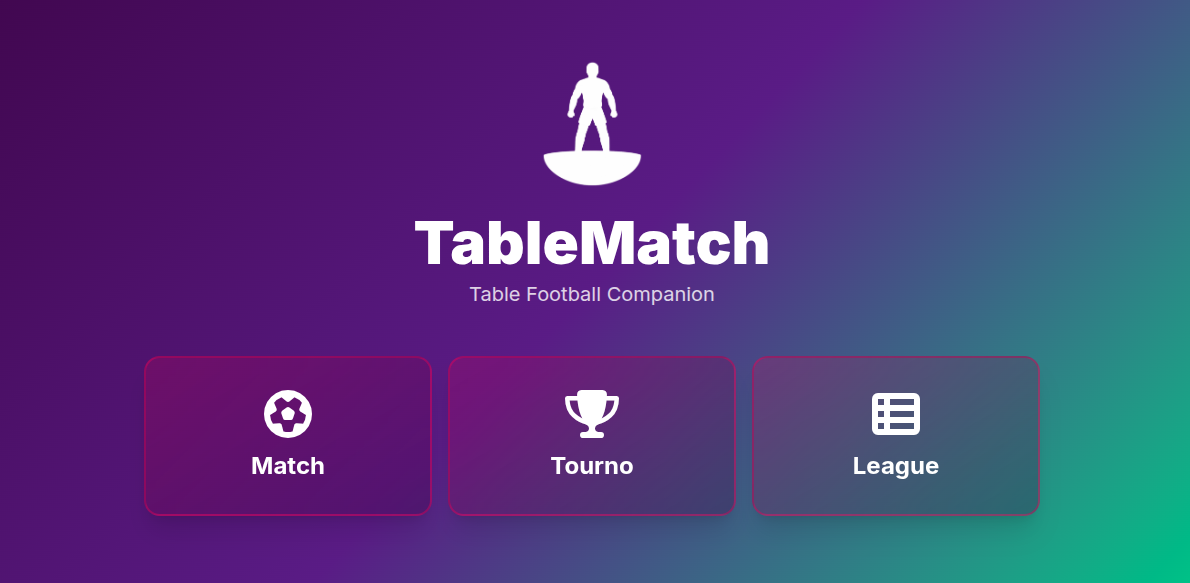
Select between a single match or tournament mode depending on how you want to play.
- Quick Match: Jump straight into a single game
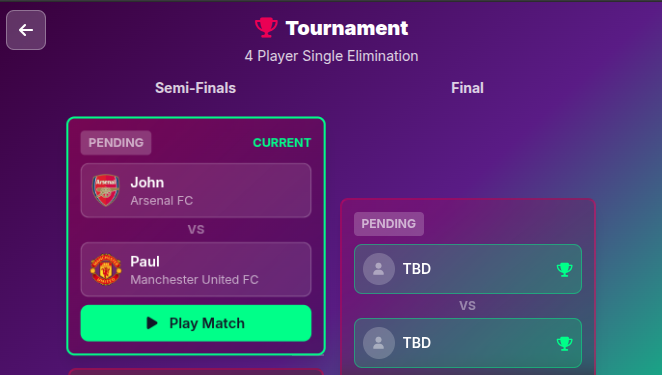
- Tournament: Set up a knockout bracket for multiple players
- Choose tournament size: 4, 8, or 16 players
- Seed players for balanced matchups
Select Teams
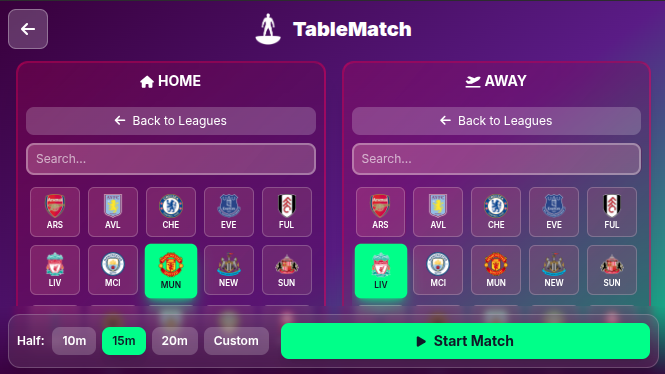
Pick real club teams from major leagues, international teams, or create your own coloured teams.
- Browse teams by competition
- Search for specific teams
- Create Subbuteo-style coloured teams
- Save custom teams for reuse
Set Match Options
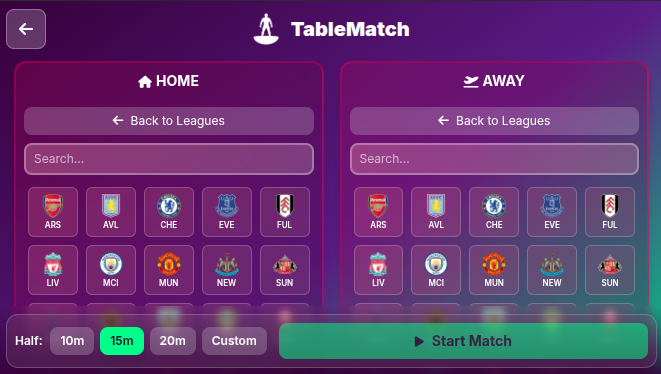
Configure your match settings to match how you play.
- Choose half length: 10, 15, or 20 minutes
- Enable or disable sound effects
- Optional extra time for draws
- Penalty shootout for decisive results
Play & Track
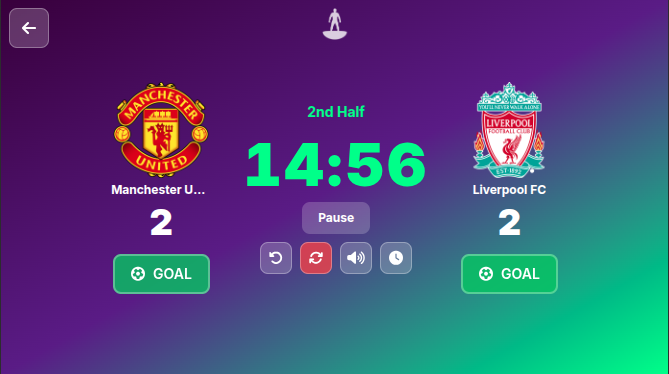
Tap to add goals, pause the timer when needed, and let TableMatch handle the rest.
- Large tap targets for quick scoring
- Pause/resume timer as needed
- Undo last goal if mistakes happen
- Screen stays on during play
Celebrate & Continue
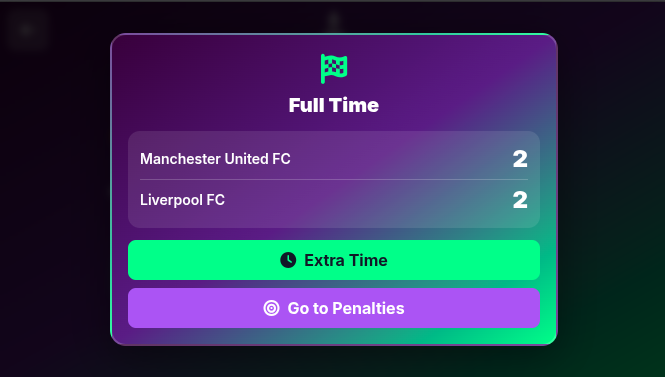
See final results, progress through tournaments, or start a new match.
- Full-time modal with final score
- Tournament bracket updates automatically
- Match history saved locally
- Start next match with one tap
Get the Best Experience
Add to Home Screen
For the best experience, add TableMatch to your home screen. On iOS, tap Share > Add to Home Screen. On Android, tap the menu > Install app.
Prop Up Your Device
Position your phone or tablet near the table where both players can easily reach it to update scores.
Use Landscape for Tablets
Tablets work best in landscape orientation for the scoreboard view, giving more space for scores and timer.
Enable Sound
Turn on sound effects for goal celebrations and timer alerts. Makes the experience more immersive!
Ready to Play?
You've read the guide - now experience it for yourself. It's even easier than it sounds.
Launch TableMatch